
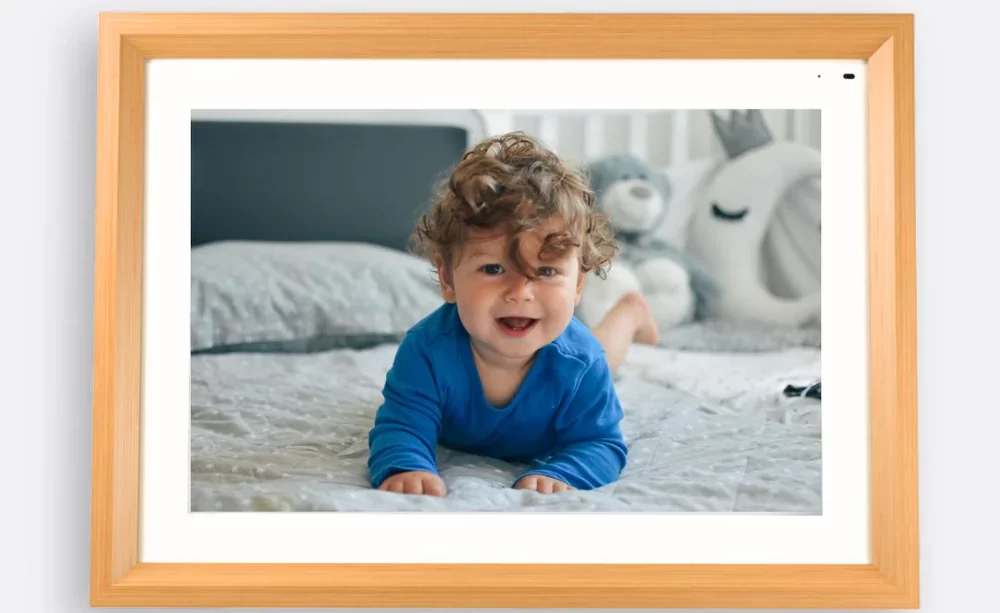
Fixing Black Images on Your Cozyla Digital Frame: A PowerShell Photo Processor
Disclosure: Some links on this page are affiliate links. If you purchase through these links, I may earn a small commission at no extra cost to you.
TL;DR: Fix black images on your Cozyla digital frame with this PowerShell script that automatically resizes photos and strips motion photo video data before uploading.
The Problem: Black Images on Your Cozyla Digital Frame
I was setting up a Cozyla digital frame (Cozyla 10.1″ Digital Picture Frame for the in-laws for Christmas and ran into a frustrating issue: some photos upload successfully but display as completely black.
After investigating, I narrowed it down to a combination of factors:
- High-resolution images – Modern phone cameras capture at 12MP or higher (3072×4080 pixels), but the frame’s native resolution is only 1280×800 pixels
- Motion photos – Google Pixel phones create “motion photos” (
.MP.jpgfiles) containing both a JPEG and embedded MP4 video - Bulk uploads – The web upload tool may choke when processing many large files at once
Whether it’s the individual file size, the embedded video data, or just overwhelming the upload tool with too much data – the result is the same: black images on your Cozyla digital frame. The solution is to resize photos before uploading and strip out any embedded video.
Many digital frames (including Cozyla) previously supported direct Google Photos album sync, which would have made this entire process unnecessary. Unfortunately, Google deprecated this API, leaving manual uploads as the only option.
This script makes that manual process much less painful.
The Solution: Cozyla Digital Frame Photo Processor
I created a PowerShell script that:
- Resizes images to 1920px max (1.5x frame resolution for quality)
- Preserves EXIF metadata (date taken, camera info, GPS)
- Strips embedded video from motion photos
- Organizes into batches of 50 (Cozyla’s upload limit)
- Tracks uploads to prevent duplicates
- Skips unsupported formats (GIF, HEIC, videos) with clear messages
flowchart TB
    A[1-source/] --> B{Format?}
    B -->|Image| C[Resize to 1920px]
    B -->|Motion Photo| D[Strip Video]
    B -->|Video/GIF| E[4-skipped/]
    D --> C
    C --> F[Copy EXIF Data]
    F --> G[2-converted/]
    G -->|50+ files| H[Batch Folders]
Quick Start: Setting Up Your Cozyla Digital Frame Processor
1. Create the Folder Structure
$BaseDir = "C:\Photos\cozyla-processor"  # Change to your preferred location

# Create folders
@("scripts", "1-source", "2-converted", "3-uploaded", "4-skipped", "tracking") |
    ForEach-Object { New-Item -ItemType Directory -Path "$BaseDir\$_" -Force }

# Create tracking file
"# Uploaded files tracking" | Out-File "$BaseDir\tracking\uploaded-files.txt"
2. Install ExifTool
Download from exiftool.org, extract to C:\Tools\exiftool\, and rename exiftool(-k).exe to exiftool.exe.
Or via winget:
winget install exiftool --accept-package-agreements --accept-source-agreements
3. Download the Script
Save the processing script to scripts\process-photos.ps1:
Click to expand full script (process-photos.ps1)
<#
.SYNOPSIS
    Process photos for Cozyla digital frame - resizes images and strips motion photo video.

.PARAMETER ConfirmUpload
    After uploading, run with this flag to archive files and update tracking.

.PARAMETER NoResize
    Skip resizing (not recommended - may cause black images)

.EXAMPLE
    .\process-photos.ps1              # Process photos
    .\process-photos.ps1 -ConfirmUpload   # Archive after upload
#>

param(
    [switch]$ConfirmUpload,
    [switch]$NoResize
)

# Configuration
$ScriptRoot = Split-Path -Parent $MyInvocation.MyCommand.Path
$ProjectRoot = Split-Path -Parent $ScriptRoot
$SourceDir = Join-Path $ProjectRoot "1-source"
$ConvertedDir = Join-Path $ProjectRoot "2-converted"
$UploadedDir = Join-Path $ProjectRoot "3-uploaded"
$SkippedDir = Join-Path $ProjectRoot "4-skipped"
$TrackingFile = Join-Path $ProjectRoot "tracking\uploaded-files.txt"

# UPDATE THIS PATH to your ExifTool installation
$ExifTool = "C:\Tools\exiftool\exiftool.exe"

# Settings
$SupportedPhotoExtensions = @('.jpg', '.jpeg', '.png', '.bmp', '.webp')
$VideoExtensions = @('.mp4', '.mov', '.avi', '.mkv')
$UnsupportedExtensions = @('.gif', '.tiff', '.tif', '.raw', '.heic', '.heif', '.svg', '.psd')
$MaxImageDimension = 1920
$JpegQuality = 90
$BatchSize = 50

# Ensure directories exist
@($ConvertedDir, $UploadedDir, $SkippedDir) | ForEach-Object {
    if (-not (Test-Path $_)) { New-Item -ItemType Directory -Path $_ -Force | Out-Null }
}

# Verify ExifTool
if (-not (Test-Path $ExifTool)) {
    Write-Error "ExifTool not found at: $ExifTool"
    Write-Host "Download from: https://exiftool.org/"
    exit 1
}

Add-Type -AssemblyName System.Drawing

# Load uploaded files for duplicate checking
$UploadedFiles = @()
if (Test-Path $TrackingFile) {
    $UploadedFiles = Get-Content $TrackingFile | Where-Object { $_ -and $_ -notmatch '^#' }
}

function Get-CleanFilename {
    param([string]$Filename)
    return $Filename -replace '\.MP\.jpg
4. Process Your Photos
# Drop photos into 1-source/, then:
.\scripts\process-photos.ps1

# After uploading to Cozyla:
.\scripts\process-photos.ps1 -ConfirmUpload
How the Cozyla Digital Frame Processor Works
| Input | Action | Output |
|---|---|---|
| JPEG, PNG, BMP, WebP | Resize to 1920px, preserve EXIF | 2-converted/ |
| Motion Photo (.MP.jpg) | Strip video, resize, preserve EXIF | 2-converted/ |
| Video (.mp4, .mov) | Skip with message | 4-skipped/ |
| GIF, HEIC, RAW | Skip with message | 4-skipped/ |
| Duplicate | Skip (already uploaded) | Left in 1-source/ |
Batch Organization
The Cozyla digital frame web interface limits uploads to 50 files. When you have more, the script automatically creates batch folders:
2-converted/
├── batch-1/    # 50 files
├── batch-2/    # 50 files
└── batch-3/    # Remaining files
Upload each batch separately.
Sample Output
Here’s what the Cozyla digital frame processor looks like in action:
=== PROCESSING PHOTOS ===
Found 5 file(s)

Processing: PXL_20251214_184429457.MP.jpg
  Stripped motion photo video
  Resized: 4080 x 3072 -> 1920 x 1446
  -> Ready for upload
Processing: IMG_20251101_003000.jpg
  Resized: 5712 x 4284 -> 1920 x 1440
  -> Ready for upload
Processing: PXL_20251206_161348644.mp4
  SKIPPED: VIDEO - Upload manually via Cozyla app
Processing: photo.gif
  SKIPPED: GIF - Not supported by Cozyla
Processing: family_photo.jpg
  Size OK: 1080 x 1920
  -> Ready for upload

=== SUMMARY ===
Processed: 3 | Skipped: 2

Next: Upload from 2-converted/, then run with -ConfirmUpload
Troubleshooting Cozyla Digital Frame Black Images
ExifTool Not Found
Update the $ExifTool path in the script to match your installation location.
Still Getting Black Images
- Don’t use the
-NoResizeflag - Try reducing
$MaxImageDimensionto 1280 - Verify output files are smaller than originals
What’s Next
Cozyla digital frames support uploading photos via email, which could eliminate the manual web upload step entirely. I’m planning to test an automated workflow that emails processed photos directly to the frame. If successful, I’ll add that capability to the next version of the script.
Your Complete Cozyla Digital Frame Processing Setup
Your Cozyla digital frame photo processor will now:
– Automatically resize photos to prevent black image issues
– Preserve original photo dates and metadata
– Strip problematic embedded video from motion photos
– Organize large uploads into manageable batches
– Track what you’ve uploaded to prevent duplicates
– Give clear feedback on skipped files
Useful Links:
GitHub Script – Sanitized script from this tutorial
ExifTool – Required for EXIF metadata preservation
Hardware:
Cozyla 10.1″ Digital Picture Frame: Amazon
Cozyla 17″ Digital Picture Frame: Amazon


