Building a Universal Remote Dashboard in Home Assistant
Disclosure: Some links on this page are affiliate links. If you purchase through these links, I may earn a small commission at no extra cost to you.
TL;DR: Build a Home Assistant remote dashboard that controls all your TVs and speakers from one place, with circlepad navigation, volume buttons, and automatic device switching—including proper Spotify Connect support.
Prerequisites
Before building your Home Assistant remote dashboard, you’ll need:
- Home Assistant (2024.1 or later)
- HACS (Home Assistant Community Store)
- Universal Remote Card (installed via HACS)
- Android TV Remote integration (for TV control)
- Google Cast or similar integration (for speaker control)
- Spotify integration (if using Spotify Connect)
The Problem
I have multiple TVs and speakers throughout my home. Each has its own media player entity, and some devices have duplicates from different integrations (Cast, DLNA, Google Home). I wanted a single Home Assistant remote dashboard that shows one remote at a time, always works (even when devices are off), and automatically switches to whatever’s playing.
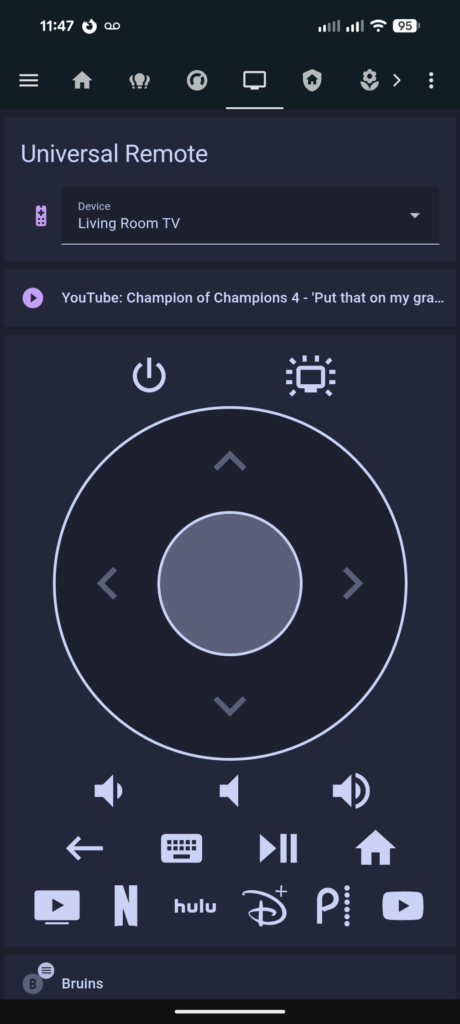
Initially I tried building remotes with native Home Assistant button grids, but found that the Universal Remote Card provides a much better experience with its circlepad navigation, built-in streaming app icons, and volume controls.
flowchart LR
    A[Device Starts Playing] -->|Triggers| B[Auto-Select Automation]
    B -->|Updates| C[Input Select]
    C -->|Shows| D[Matching Remote Card]
Step 1: Install Universal Remote Card
The Universal Remote Card is the foundation of your Home Assistant remote dashboard. Install it from HACS:
- Open HACS in Home Assistant
- Go to Frontend → Explore & Download Repositories
- Search for “Universal Remote Card”
- Click Download
- Refresh your browser (Ctrl+F5)
The card supports multiple platforms including Android TV, Roku, Apple TV, and more. For this guide, we’ll focus on Android TV remotes.
Troubleshooting Tip: If you previously installed “Android TV Remote Card” (a different HACS card), you’ll need to remove it first. Having both installed caused the Universal Remote Card to render as an empty box for me. Check HACS → Frontend for any conflicting remote card installations.
Step 2: Create the Device Selector
Create an input_select helper that lists your controllable devices for the remote dashboard:
input_select:
  remote_device:
    name: Remote Device
    options:
      - "LIVING_ROOM_TV"
      - "BEDROOM_TV"
      - "KITCHEN_SPEAKER"
      - "OFFICE_SPEAKER"
    initial: "LIVING_ROOM_TV"
icon: mdi:remote-tvAdd your own device names to match your setup.
Step 3: Build the TV Remote Dashboard
The Universal Remote Card requires explicit element listing in the rows configuration. Here’s what I learned building my Home Assistant remote dashboard:
- Platform: Use
Android TV(with a space) for Android TV devices - Elements must be explicitly listed: The card won’t show a default layout—you must specify each button in the
rowssection - Custom actions: For buttons like Peacock or backlight toggles, define them in
custom_actions - Icons: Check both
mdi:andphu:(custom-brand-icons) for the best icons
TV Remote Card Configuration
Wrap each remote in a conditional card that shows only when that device is selected:
# Example TV Remote with Universal Remote Card
- type: conditional
  conditions:
    - condition: state
      entity: input_select.remote_device
      state: LIVING_ROOM_TV
  card:
    type: custom:universal-remote-card
    remote_id: remote.YOUR_TV_REMOTE
    media_player_id: media_player.YOUR_TV
    keyboard_id: remote.YOUR_TV_REMOTE
    platform: Android TV
    autofill_entity_id: true
    haptics: true
    rows:
      - - power
        - backlight
      - circlepad
      - volume_buttons
      - - back
        - keyboard
        - play_pause
        - home
      - - youtube_tv
        - netflix
        - hulu_custom
        - disney
        - peacock
        - youtube
    custom_actions:
      - name: backlight
        type: button
        icon: mdi:television-ambient-light
        tap_action:
          action: perform-action
          perform_action: light.toggle
          target:
            entity_id: light.YOUR_TV_BACKLIGHT
      - name: hulu_custom
        type: button
        icon: phu:hulu
        tap_action:
          action: key
          key: hulu
      - name: youtube_tv
        type: button
        icon: mdi:youtube-tv
        tap_action:
          action: key
          key: youtube_tv
      - name: peacock
        type: button
        icon: phu:peacock
        tap_action:
          action: perform-action
          perform_action: remote.turn_on
          target:
            entity_id: remote.YOUR_TV_REMOTE
          data:
activity: com.peacocktv.peacockandroidIcon Tips for Your Remote Dashboard
Not all streaming service icons are available in the default Material Design Icons (mdi). I found better icons in the custom-brand-icons pack (phu prefix):
phu:hulu– Better than mdi:huluphu:peacock– No mdi:peacock existsmdi:youtube-tv– Works well for YouTube TVmdi:netflix,mdi:youtube,mdi:disney– Built-in defaults work fine
Install custom-brand-icons via HACS if you need more brand icons.
Adding More Streaming Services
To add buttons for other streaming apps to your remote dashboard:
- Check built-in keys: The Universal Remote Card has built-in support for many apps. Check the card documentation for a list of supported keys like
netflix,hulu,disney,amazon,spotify, etc. - Find the package name: For apps not built-in, you need the Android package name. On your TV, go to Settings → Apps and find the app. The package name is usually shown (e.g.,
com.peacocktv.peacockandroid). - Use remote.turn_on: Create a custom action that launches the app by package name.
- Find icons: Search MDI icons first, then check custom-brand-icons (phu) for brand-specific icons.
Example custom action for an app not built into the card:
custom_actions:
  - name: max
    type: button
    icon: phu:max  # or mdi:alpha-m-box for generic
    tap_action:
      action: perform-action
      perform_action: remote.turn_on
      target:
        entity_id: remote.YOUR_TV_REMOTE
      data:
activity: com.wbd.stream # HBO Max package nameTVs Without Backlights
For TVs without LED backlights, simply remove the backlight from the first row:
rows:
  - power  # Single element, not a row array
  - circlepad
  - volume_buttons
  - - back
    - keyboard
    - play_pause
    - home
  - - youtube_tv
    - netflix
# ... rest of appsStep 4: Build the Speaker Remote
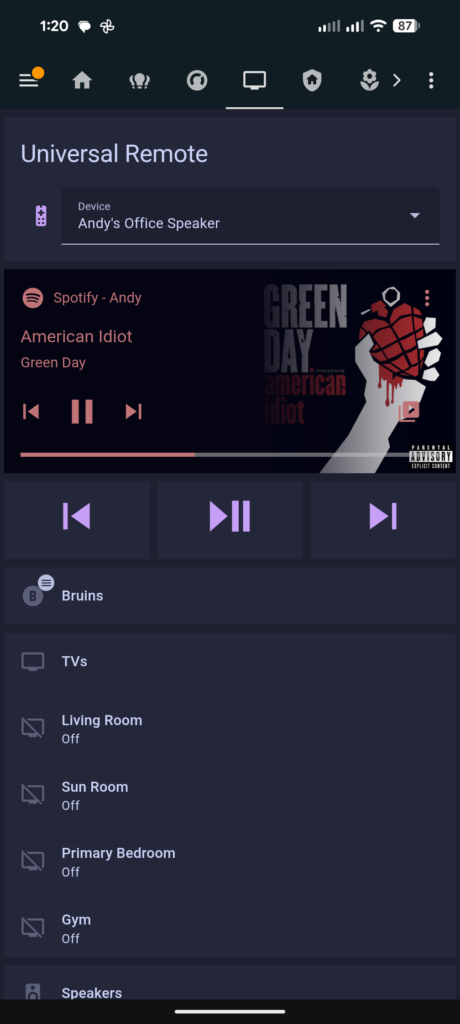
Speaker remotes for your Home Assistant remote dashboard are simpler—just media controls using native cards. I use volume buttons instead of a slider for better touch accuracy on mobile:
# Example Speaker Remote
- type: conditional
  conditions:
    - condition: state
      entity: input_select.remote_device
      state: KITCHEN_SPEAKER
  card:
    type: vertical-stack
    cards:
      - type: media-control
        entity: media_player.YOUR_SPEAKER
      - square: false
        columns: 3
        type: grid
        cards:
          - type: button
            icon: mdi:skip-previous
            tap_action:
              action: perform-action
              perform_action: media_player.media_previous_track
              target:
                entity_id: media_player.YOUR_SPEAKER
          - type: button
            icon: mdi:play-pause
            tap_action:
              action: perform-action
              perform_action: media_player.media_play_pause
              target:
                entity_id: media_player.YOUR_SPEAKER
          - type: button
            icon: mdi:skip-next
            tap_action:
              action: perform-action
              perform_action: media_player.media_next_track
              target:
                entity_id: media_player.YOUR_SPEAKER
      - square: false
        columns: 3
        type: grid
        cards:
          - type: button
            icon: mdi:volume-minus
            tap_action:
              action: perform-action
              perform_action: media_player.volume_down
              target:
                entity_id: media_player.YOUR_SPEAKER
          - type: button
            icon: mdi:volume-off
            tap_action:
              action: perform-action
              perform_action: media_player.volume_mute
              data:
                is_volume_muted: true
              target:
                entity_id: media_player.YOUR_SPEAKER
          - type: button
            icon: mdi:volume-plus
            tap_action:
              action: perform-action
              perform_action: media_player.volume_up
              target:
entity_id: media_player.YOUR_SPEAKERStep 5: Add Auto-Selection to Your Remote Dashboard
Create a template sensor that detects which device is currently playing:
Important – Cast vs Android TV Entities: For TVs, you may have multiple media_player entities from different integrations. The Cast entity (e.g., media_player.living_room_tv) reports playing state with full media metadata (title, app, artist). The Android TV entity (e.g., media_player.living_room_tv_2) often only shows on/off without media info. Use Cast entities for detection sensors and Android TV entities for remote control.
template:
  - sensor:
      - name: "Remote Active Device"
        unique_id: remote_active_device
        state: >
          {% set devices = [
            ('LIVING_ROOM_TV', 'media_player.YOUR_LIVING_ROOM_TV'),
            ('BEDROOM_TV', 'media_player.YOUR_BEDROOM_TV'),
            ('KITCHEN_SPEAKER', 'media_player.YOUR_KITCHEN_SPEAKER'),
            ('OFFICE_SPEAKER', 'media_player.YOUR_OFFICE_SPEAKER')
          ] %}
          {% set active_states = ['playing', 'paused', 'buffering'] %}
          {% set playing = namespace(device=none) %}
          {% for name, entity in devices %}
            {% set state = states(entity) %}
            {% set has_media = state_attr(entity, 'media_title') not in [none, '', 'unknown'] %}
            {% if playing.device is none %}
              {% if state in active_states %}
                {% set playing.device = name %}
              {% elif state == 'idle' and has_media %}
                {% set playing.device = name %}
              {% endif %}
            {% endif %}
          {% endfor %}
          {{ playing.device if playing.device else 'none' }}
icon: mdi:play-circleThen create an automation to switch the remote dashboard when a device starts playing:
automation:
  - id: remote_auto_select_playing_device
    alias: 'Remote: Auto-Select Playing Device'
    trigger:
      - platform: state
        entity_id: sensor.remote_active_device
    condition:
      - condition: template
        value_template: "{{ trigger.to_state.state != 'none' }}"
    action:
      - service: input_select.select_option
        target:
          entity_id: input_select.remote_device
        data:
option: "{{ trigger.to_state.state }}"Handling Spotify Connect
I discovered an issue with my Home Assistant remote dashboard: when playing Spotify via Spotify Connect to a Google Cast speaker, the Cast entity often shows off even while music is playing. The media-control card displays nothing because the speaker entity has no media information.
The Spotify media player entity (media_player.spotify_username) has all the information—current track, artist, album art—and a source attribute showing which speaker it’s playing to. The challenge is getting the dashboard to show the Spotify card when appropriate.
Why Attribute Conditions Don’t Work
My first attempt was using a conditional card with an attribute condition:
# This does NOT work!
- type: conditional
  conditions:
    - condition: state
      entity: media_player.spotify_andy
      attribute: source
      state: "Office speaker"
  card:
    type: media-control
entity: media_player.spotify_andyThis causes configuration errors. After researching, I found that Lovelace conditional cards only support limited condition types: state, numeric_state, screen, user, location, time, and and/or. They don’t support attribute conditions or template conditions.
The Solution: Binary Sensors
The workaround is to create template binary sensors that expose the Spotify source check, then use simple state conditions in the dashboard. Add these to your configuration.yaml:
template:
  - binary_sensor:
      - name: "Spotify Playing on Kitchen Speaker"
        unique_id: spotify_playing_kitchen_speaker
        state: >
          {{ is_state('media_player.spotify_YOUR_USERNAME', 'playing') and
             state_attr('media_player.spotify_YOUR_USERNAME', 'source') == 'Kitchen speaker' }}
        icon: mdi:spotify
      - name: "Spotify Playing on Office Speaker"
        unique_id: spotify_playing_office_speaker
        state: >
          {{ is_state('media_player.spotify_YOUR_USERNAME', 'playing') and
             state_attr('media_player.spotify_YOUR_USERNAME', 'source') == 'Office speaker' }}
        icon: mdi:spotify
# Add one for each speaker...Important: The source name must match exactly what Spotify reports. Check Developer Tools → States → media_player.spotify_YOUR_USERNAME while playing on each speaker to get the exact source names.
Future Enhancement: This approach currently works with a single Spotify account. If you need to support multiple Spotify accounts playing on different speakers simultaneously, you would replace these binary sensors with template sensors that return which Spotify entity is playing on each speaker. The dashboard would then use a single conditional per speaker with the returned entity. This scales better for 2-3 accounts.
Updated Speaker Remote with Spotify Support
Now update your speaker remotes to show the Spotify card when Spotify is playing:
# Speaker with Spotify-aware media display
- type: conditional
  conditions:
    - condition: state
      entity: input_select.remote_device
      state: "OFFICE_SPEAKER"
  card:
    type: vertical-stack
    cards:
      # Show Spotify card when playing on this speaker
      - type: conditional
        conditions:
          - condition: state
            entity: binary_sensor.spotify_playing_on_office_speaker
            state: "on"
        card:
          type: media-control
          entity: media_player.spotify_YOUR_USERNAME
      # Show speaker card when Spotify is NOT playing here
      - type: conditional
        conditions:
          - condition: state
            entity: binary_sensor.spotify_playing_on_office_speaker
            state: "off"
        card:
          type: media-control
          entity: media_player.YOUR_OFFICE_SPEAKER
      # Playback controls
      - square: false
        columns: 3
        type: grid
        cards:
          - type: button
            icon: mdi:skip-previous
            tap_action:
              action: perform-action
              perform_action: media_player.media_previous_track
              target:
                entity_id: media_player.YOUR_OFFICE_SPEAKER
          - type: button
            icon: mdi:play-pause
            tap_action:
              action: perform-action
              perform_action: media_player.media_play_pause
              target:
                entity_id: media_player.YOUR_OFFICE_SPEAKER
          - type: button
            icon: mdi:skip-next
            tap_action:
              action: perform-action
              perform_action: media_player.media_next_track
              target:
                entity_id: media_player.YOUR_OFFICE_SPEAKER
      # Volume controls
      - square: false
        columns: 3
        type: grid
        cards:
          - type: button
            icon: mdi:volume-minus
            tap_action:
              action: perform-action
              perform_action: media_player.volume_down
              target:
                entity_id: media_player.YOUR_OFFICE_SPEAKER
          - type: button
            icon: mdi:volume-off
            tap_action:
              action: perform-action
              perform_action: media_player.volume_mute
              data:
                is_volume_muted: true
              target:
                entity_id: media_player.YOUR_OFFICE_SPEAKER
          - type: button
            icon: mdi:volume-plus
            tap_action:
              action: perform-action
              perform_action: media_player.volume_up
              target:
entity_id: media_player.YOUR_OFFICE_SPEAKERKey points:
- The binary sensor condition shows the Spotify media-control card when that sensor is “on”
- When Spotify isn’t playing on this speaker, the regular speaker card shows instead
- Playback and volume buttons always target the speaker entity directly
Recommended Speakers for Your Remote Dashboard
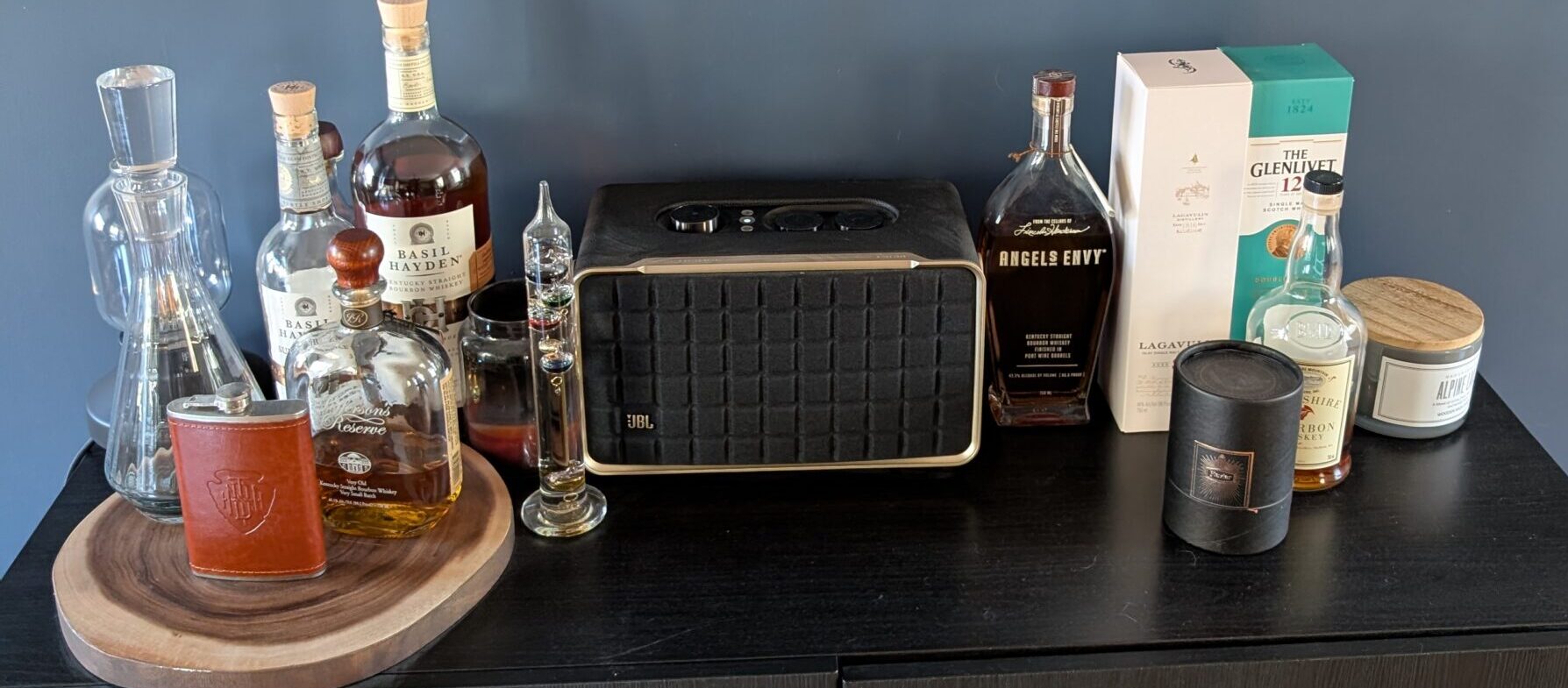
For this setup, I use JBL Authentics speakers throughout my home. They integrate seamlessly with Home Assistant through both Google Cast and Google Home integrations, and work great with Spotify Connect.
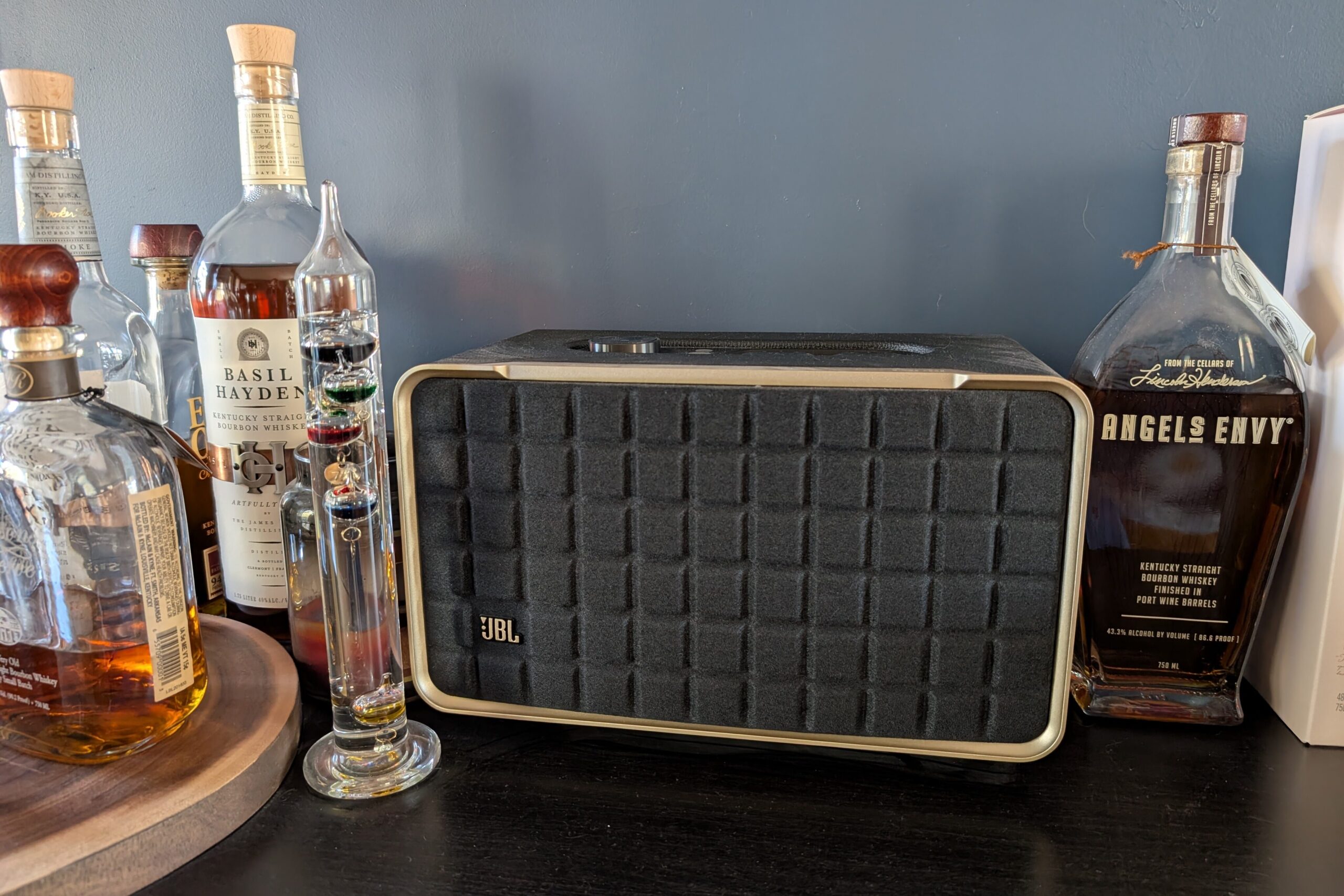
Why I like them:
- Great sound quality with classic retro aesthetics
- Built-in Google Assistant and Alexa (use either or neither)
- Native Spotify Connect support
- Show up as Cast devices in Home Assistant
- The Authentics 300 has a built-in battery—I move it outside when we’re on the deck
I have the JBL Authentics 200 in my office and the JBL Authentics 300 in the dining area. Both have been reliable for over a year.
Your Complete Home Assistant Remote Dashboard
Your Home Assistant remote dashboard now:
- ✅ Shows one remote at a time via dropdown selector
- ✅ TV remotes include circlepad navigation, volume buttons, and streaming app shortcuts
- ✅ Speaker remotes include playback and volume button controls
- ✅ Keyboard button for text entry on Android TVs
- ✅ Optional backlight toggle for TVs with LED strips
- ✅ Remotes always visible, even when devices are off
- ✅ Auto-switches to any device that starts playing
- ✅ Shows Spotify media info via binary sensor workaround
Useful Links:
GitHub Config Files – Sanitized YAML configs for this project
Universal Remote Card – The HACS card used for TV remotes
Custom Brand Icons – Additional icons including phu:hulu and phu:peacock
Material Design Icons – Search for mdi: icons
Home Assistant Conditional Cards – Official documentation on supported conditions
Hardware:
Google TV Streamer 4K: Amazon
JBL Authentics 200: Amazon
JBL Authentics 300: Amazon
Related Posts:
Monitoring Energy Usage in Home Assistant – Track your smart home power consumption


